Help Center & FAQs
Detailed guides to automate and optimize your personal finances.
Wallet Automation
The power of automation
NETO registers your expenses automatically whenever you use Apple Pay. Forget manual tracking and keep your balance updated by the second.
Visual tutorial: How to create the automation
Final result: Instant tracking using Apple Pay
Step by Step Guide (Full Setup)

Open the Shortcuts app and go to the Automation tab.

Tap the + button to create a new personal automation.

Busca el activador llamado Transaction en la lista.
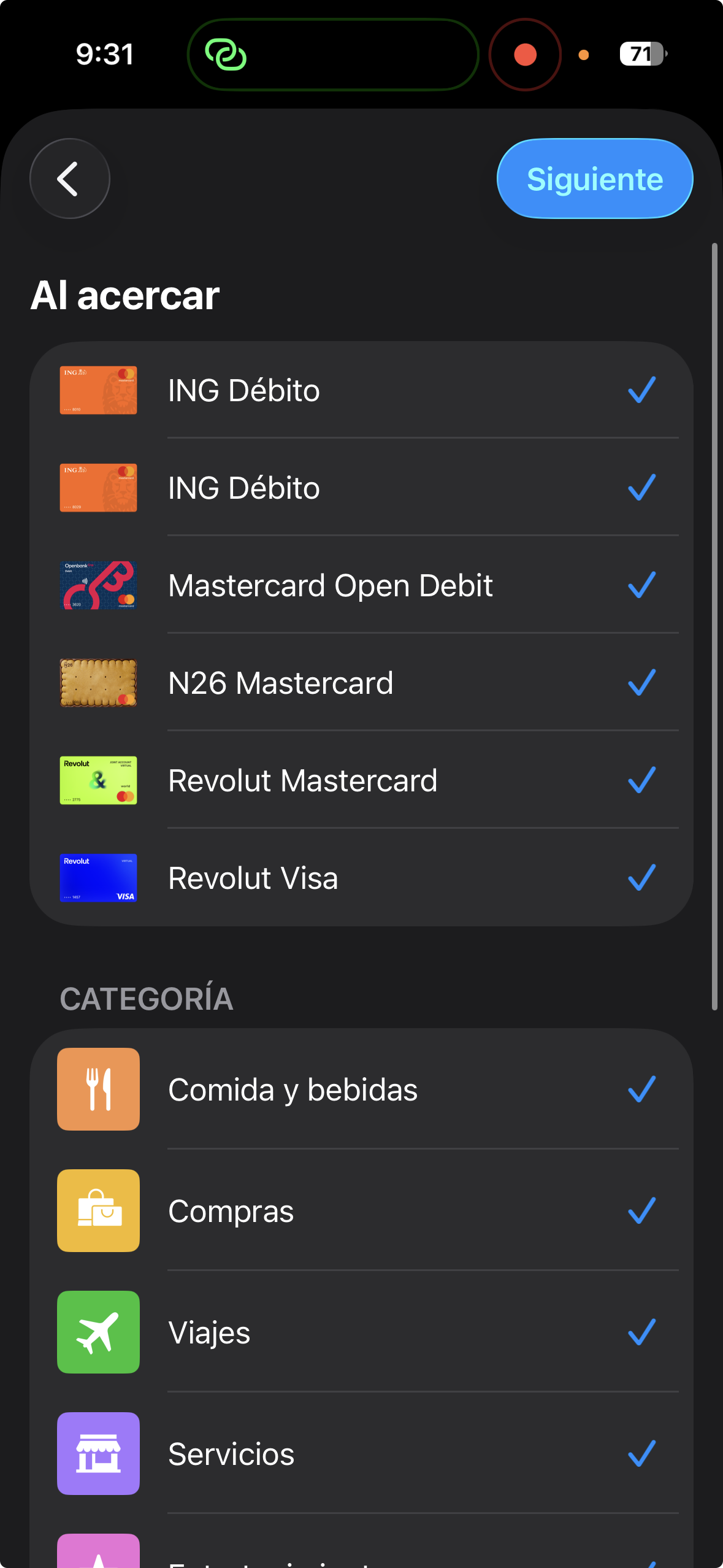
Select the cards you want to monitor (or leave it at 'Any').

Check Run Immediately so it won't ask for confirmation.
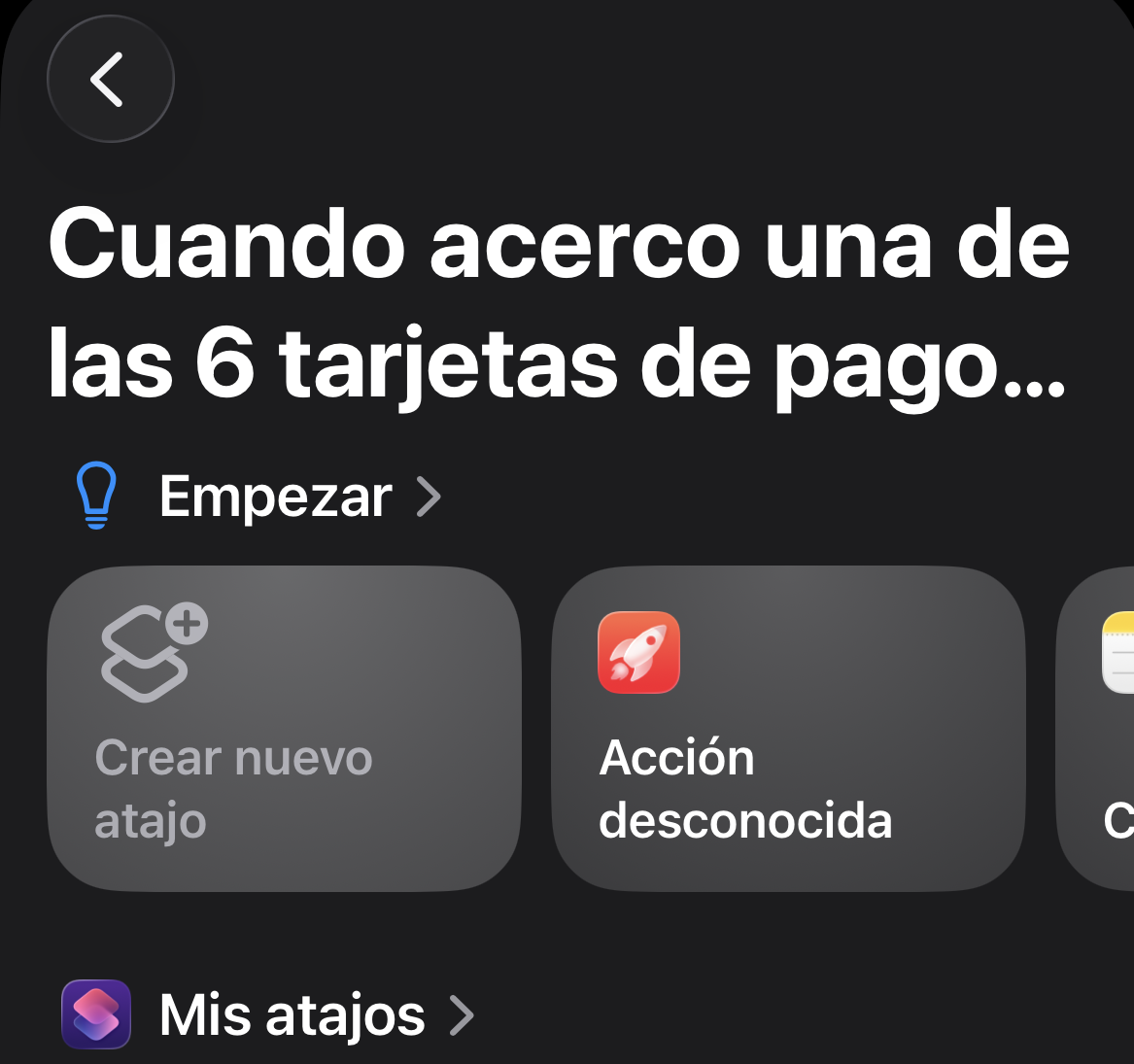
Tap Next to start configuring the action.

Select New Blank Automation.
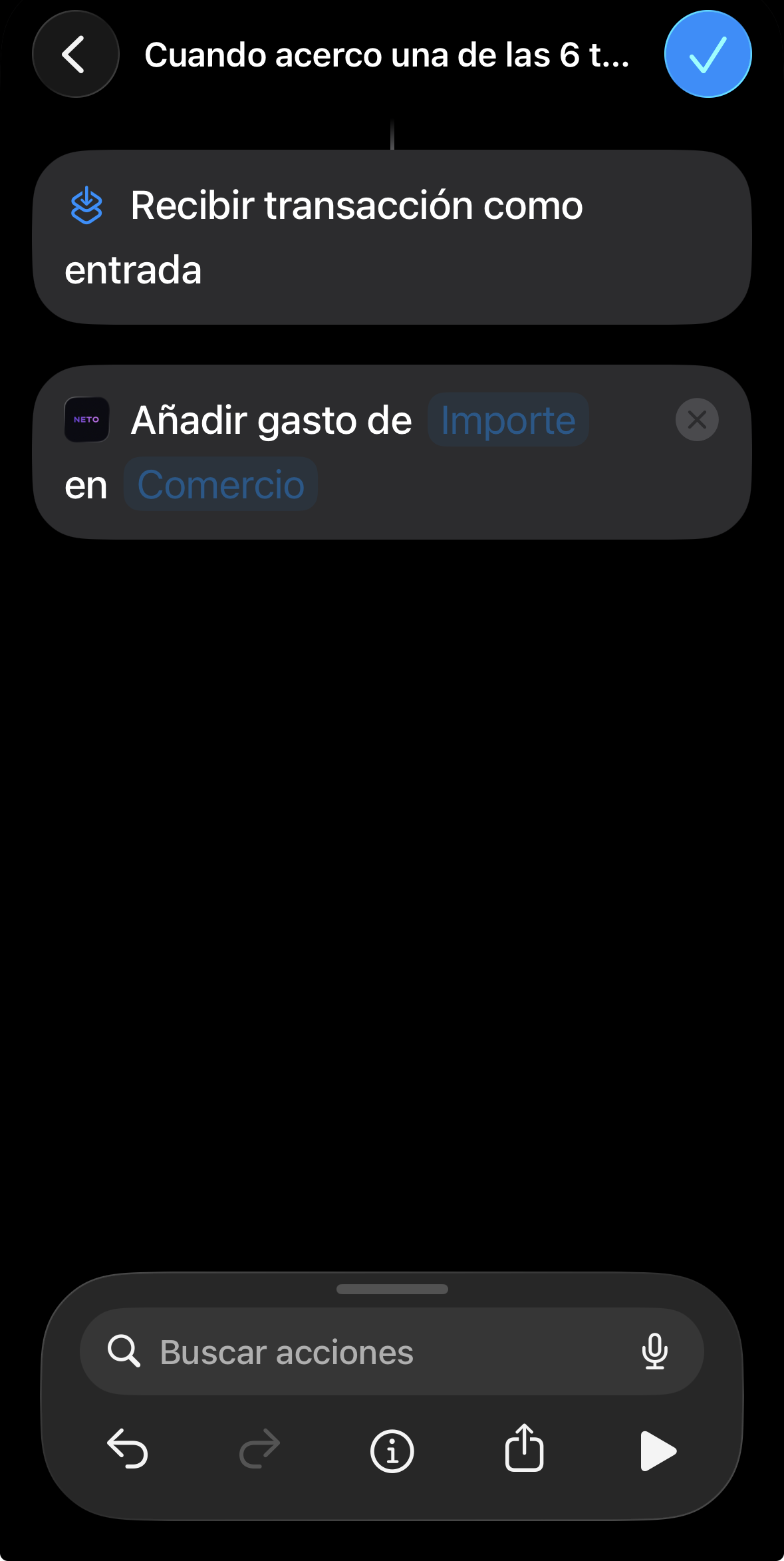
Tap the Add Action button.
Type NETO in the search bar.
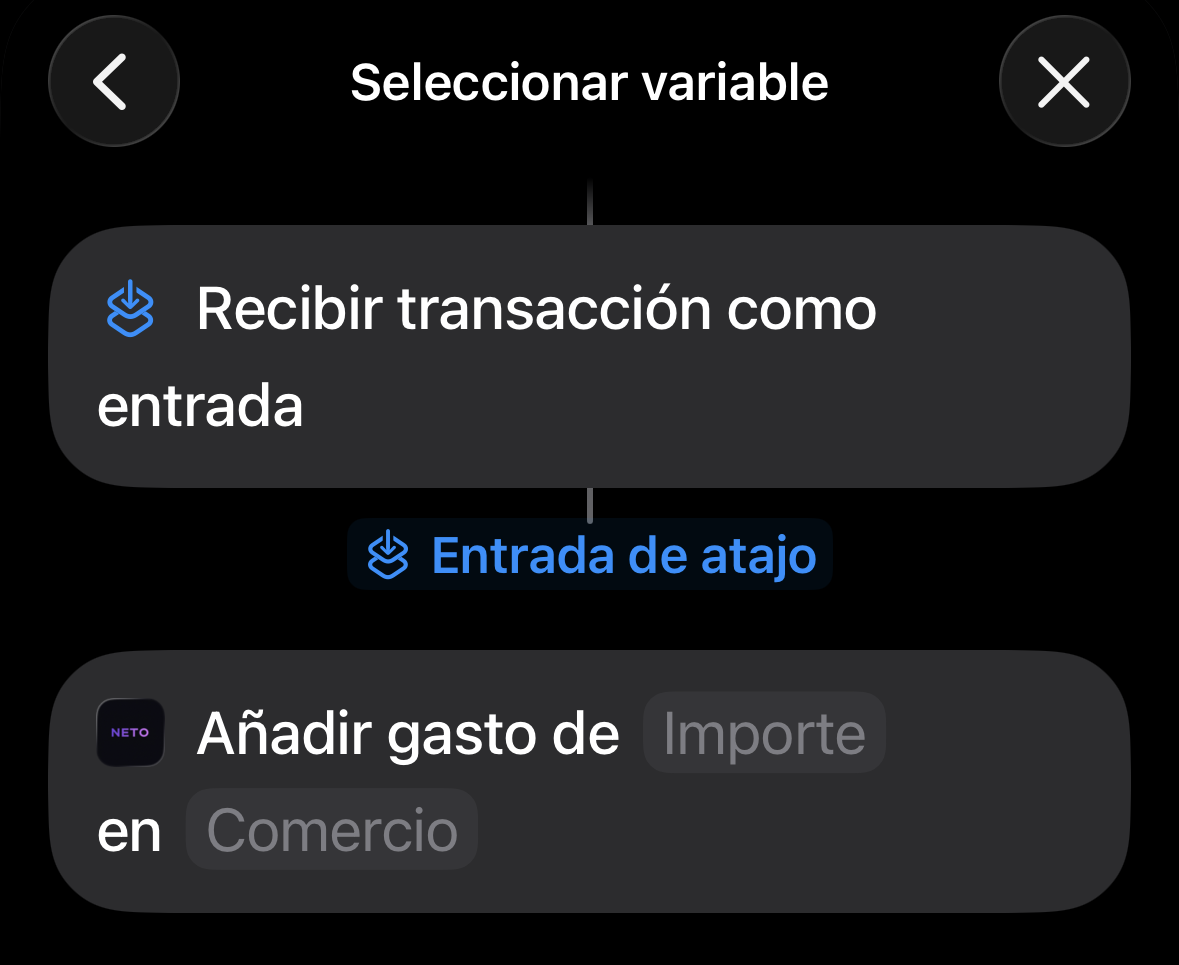
Choose Add Wallet Transaction.
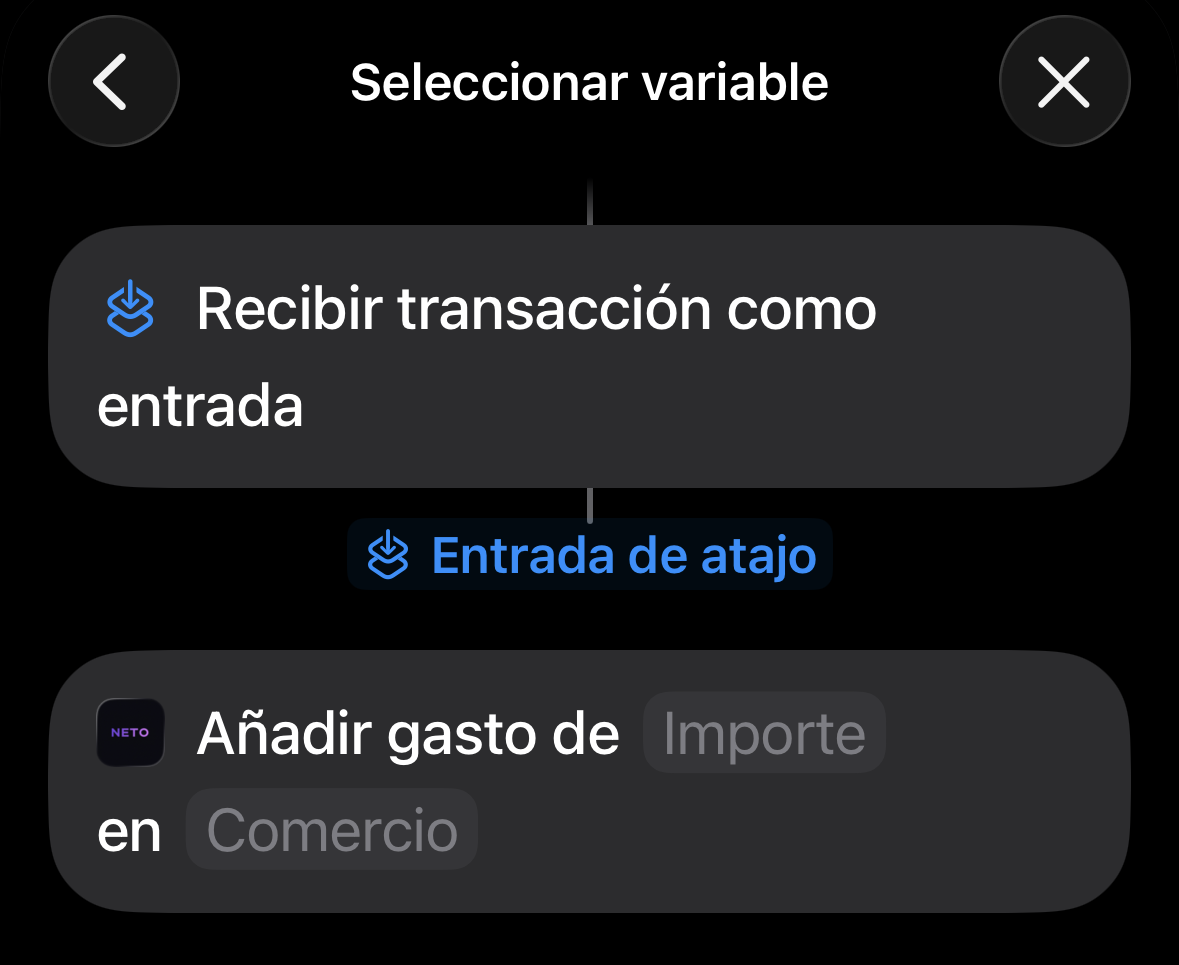
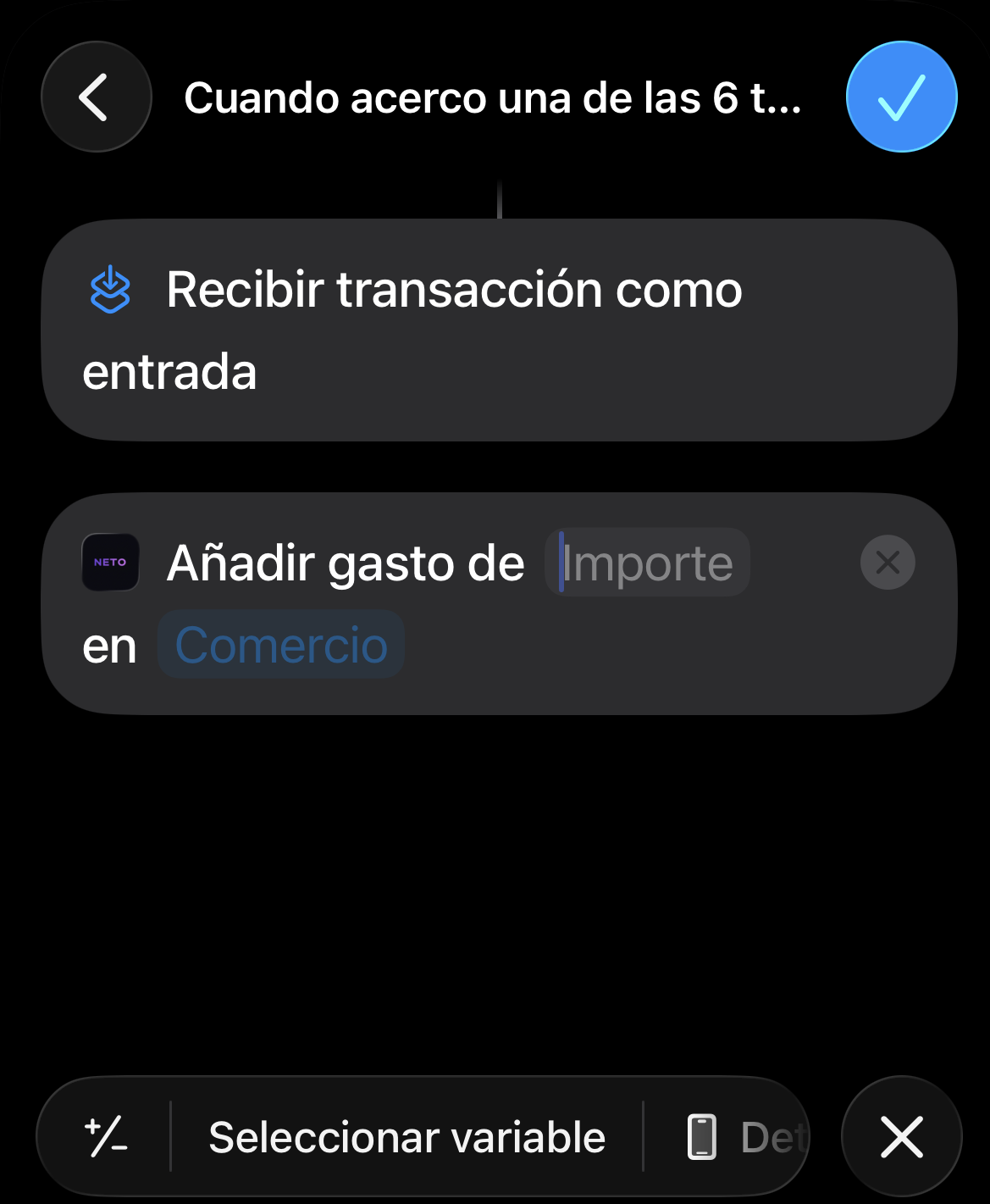
Tap on the Amount field.
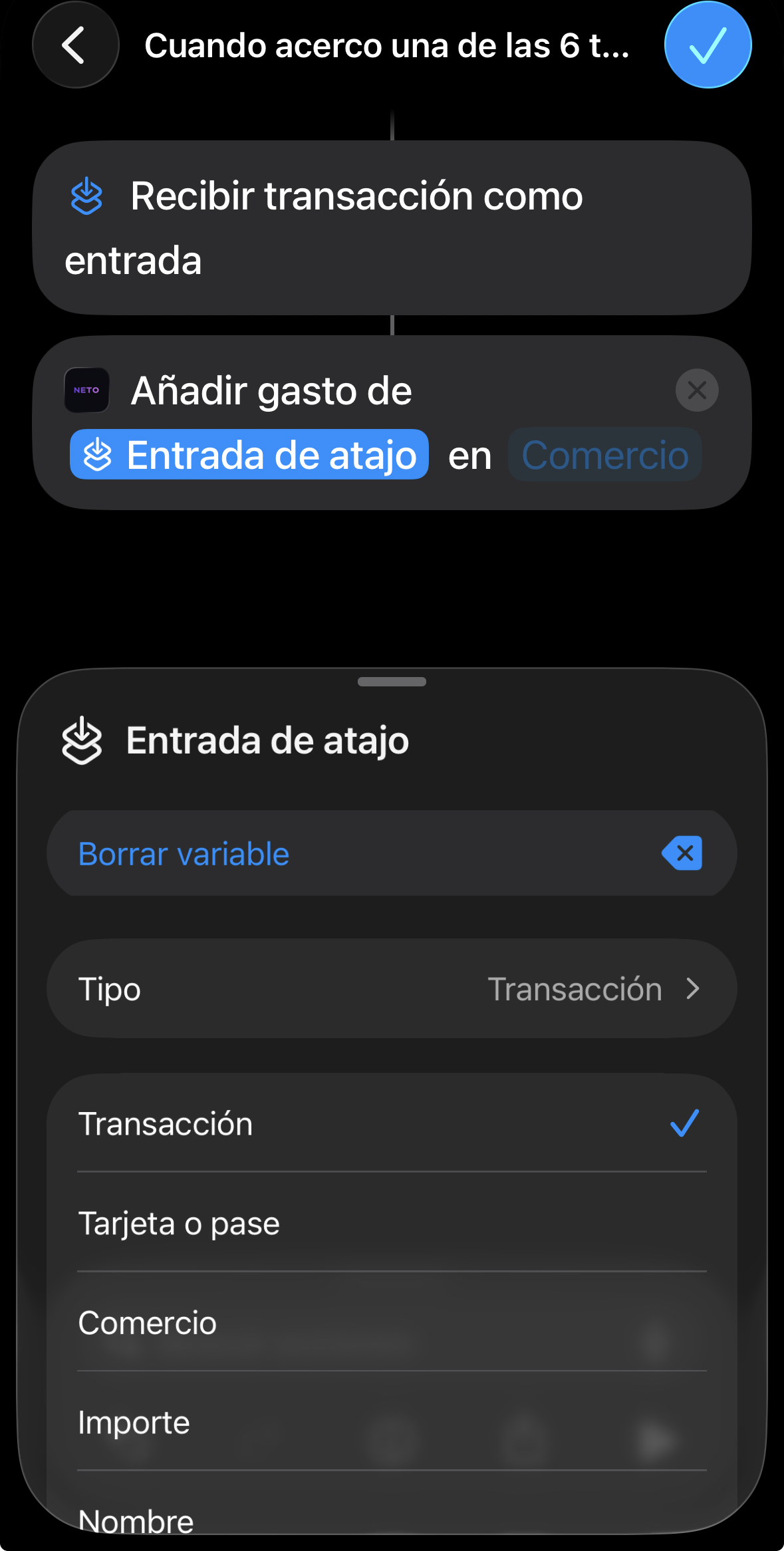
Select the Amount option from the Shortcut Input menu.

Tap on the Merchant field.
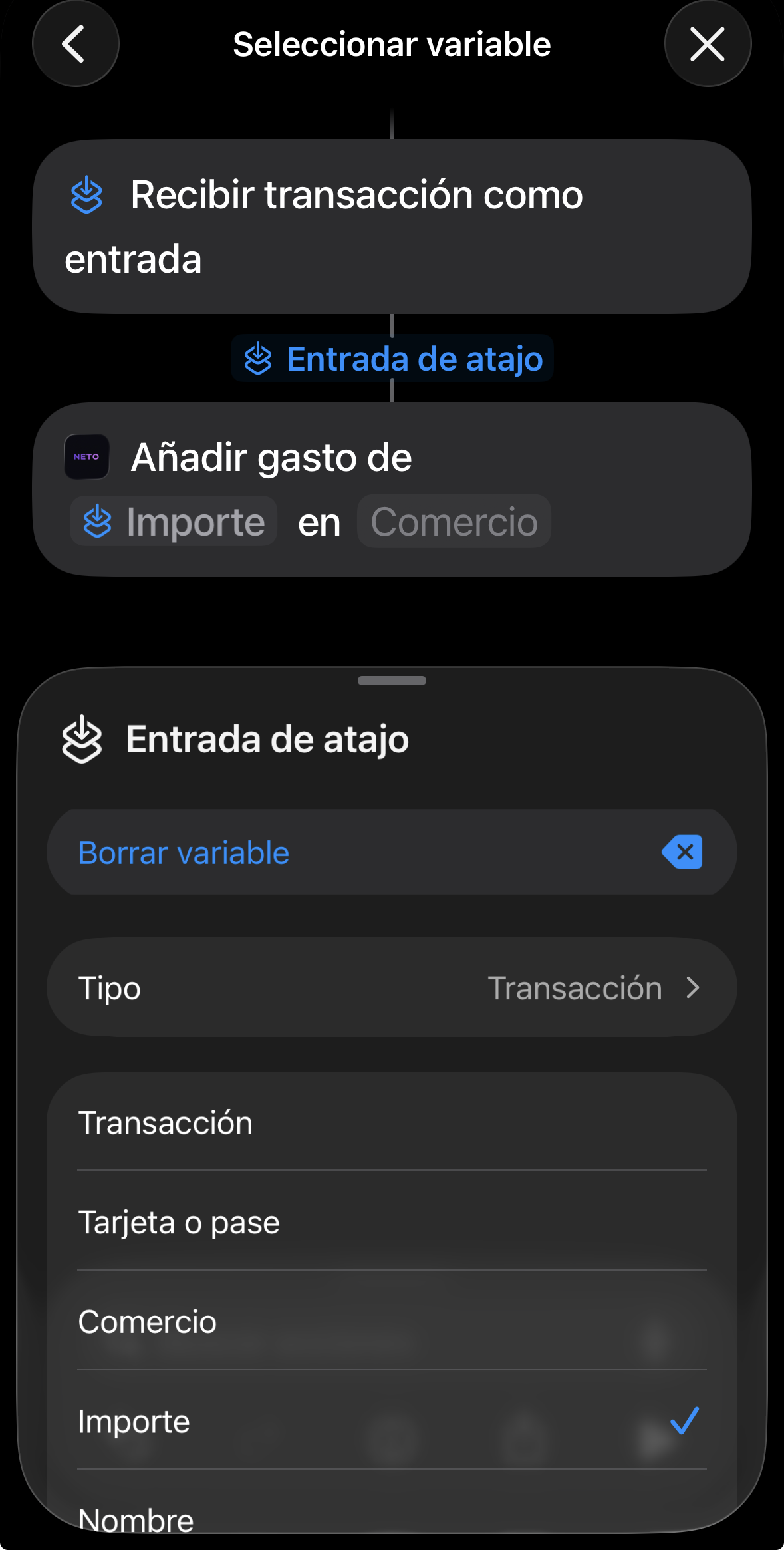
Select Merchant from the Shortcut Input menu.
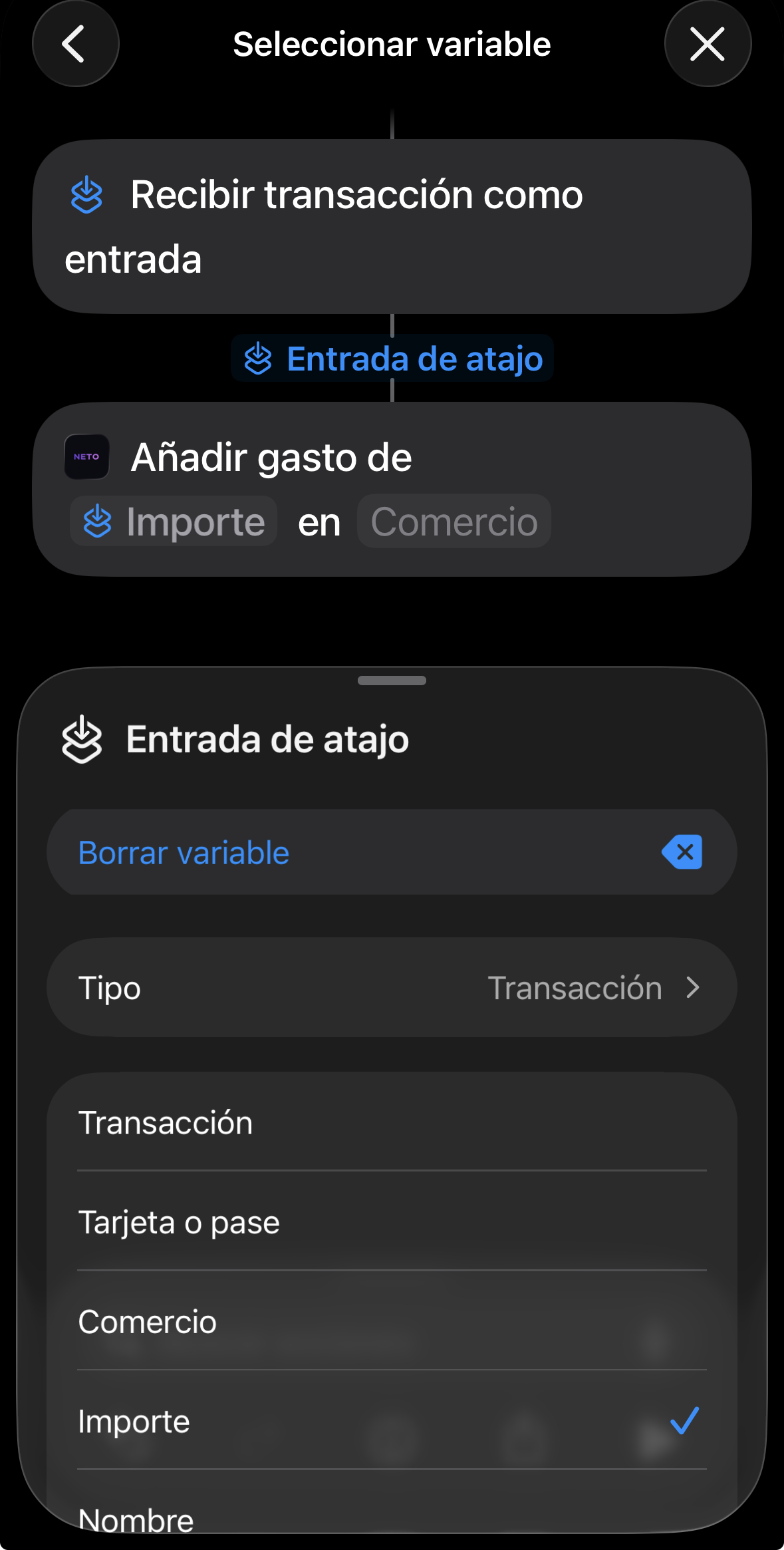
Verify that both fields are connected to the blue variables.

Tap Done to save the automation.
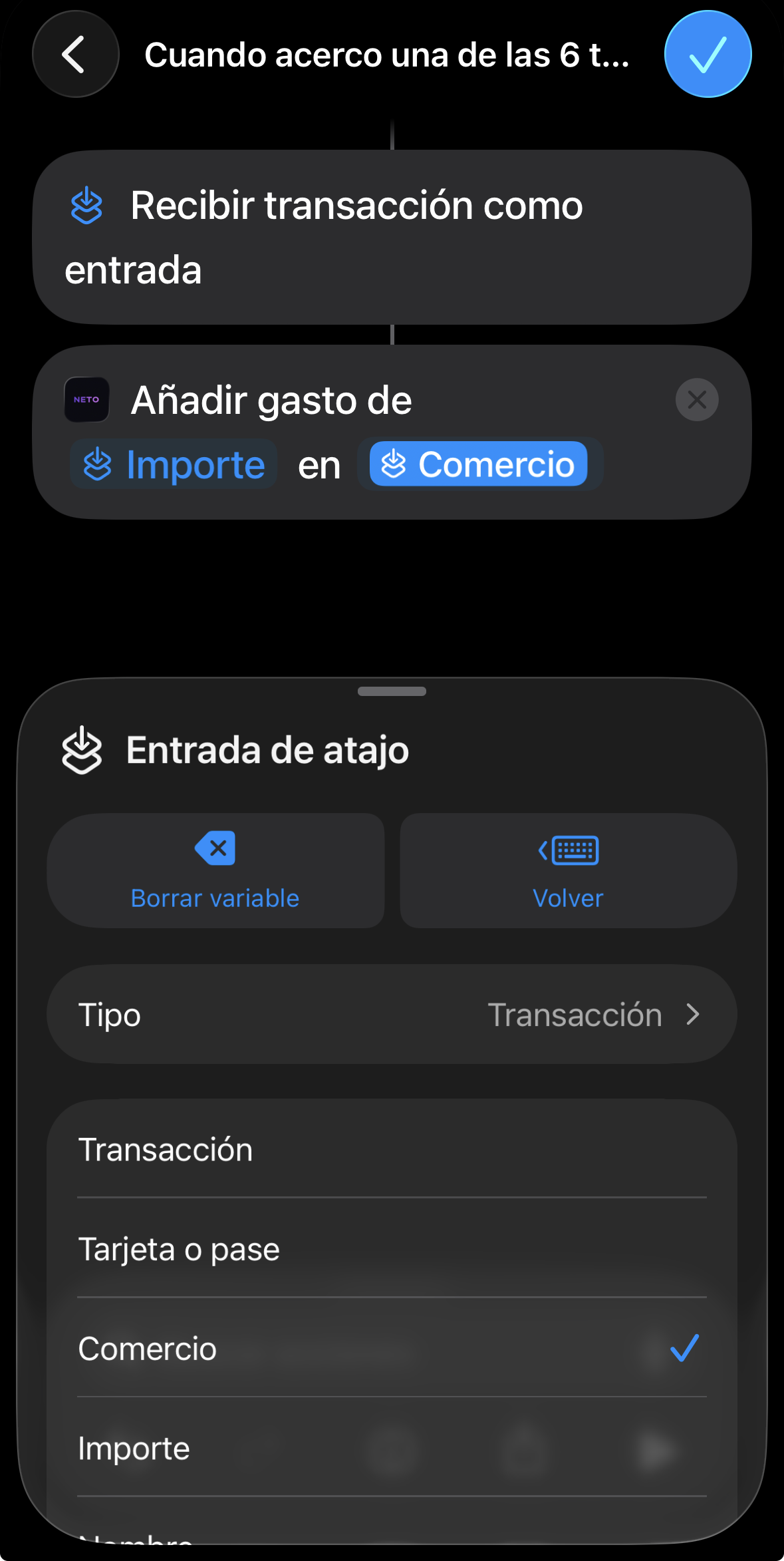
All done! You will receive your expenses in NETO instantly.
📱 Widgets
Add a quick glance to your Real Available balance. Long press the home screen, tap + and search for NETO.
🔘 Control Center
On iOS 18, you can add the NETO button directly to the Control Center to register expenses even faster.
🏦 Bank Control
Set your Initial Balance in Settings. NETO will add your income and subtract your daily expenses to tell you exactly how much you have in the bank, without needing to connect it.
📄 Import CSV
Get your bank's CSV and upload it. NETO will learn how you map your columns so next time it's instantaneous.